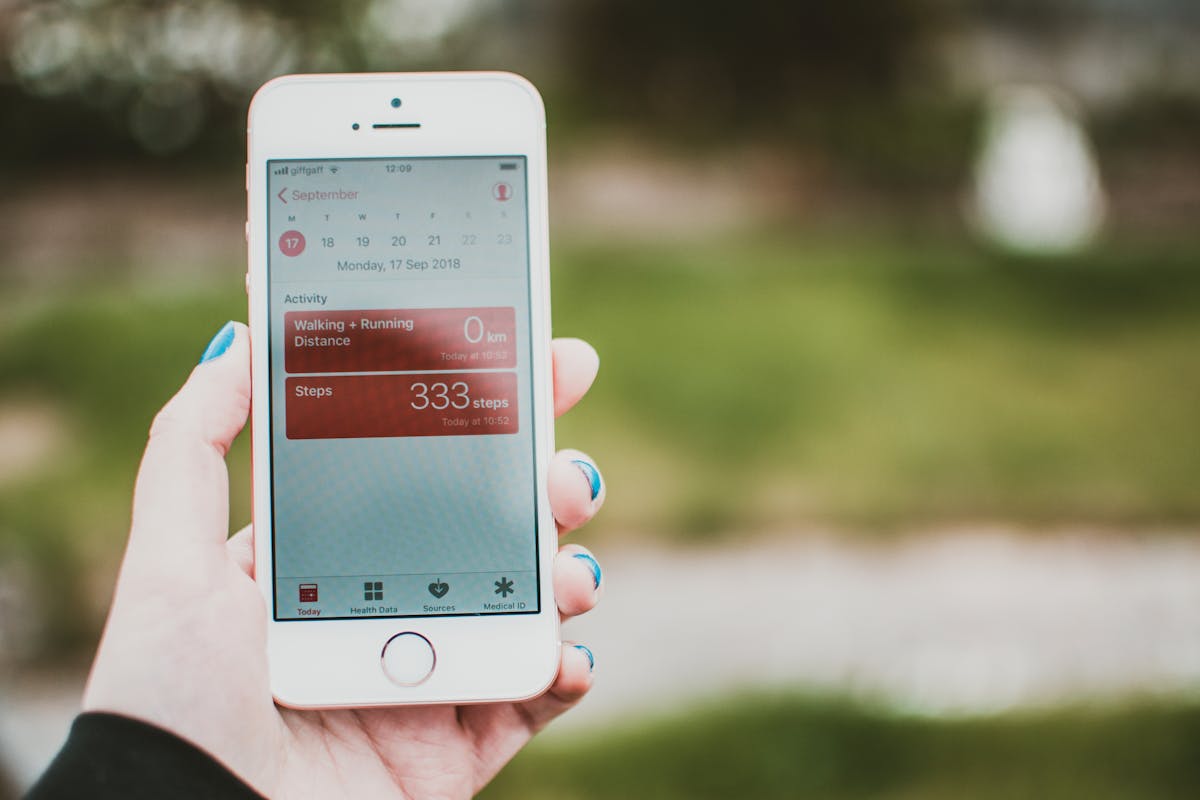
Health data integration is table stakes for fitness and wellness apps. Users expect their workouts, steps, and health metrics to sync with Apple Health and Google Fit. Here's how to implement it properly on both platforms.
The Landscape in 2026
iOS uses HealthKit, Apple's unified health data store. It's mature, well-documented, and consistent across devices.
Android has transitioned from Google Fit to Health Connect, a new platform-level API. Google Fit APIs are deprecated - new apps should use Health Connect exclusively.
Both platforms share similar concepts but have different APIs, permission models, and data schemas.
Apple HealthKit Integration
Setting Up Permissions
HealthKit requires explicit capability and usage descriptions:
<!-- ios/App/Info.plist -->
<key>NSHealthShareUsageDescription</key>
<string>We read your health data to track workout progress</string>
<key>NSHealthUpdateUsageDescription</key>
<string>We save your workouts to Apple Health</string>
Enable the HealthKit capability in Xcode, then request permissions at runtime:
import HealthKit

let healthStore = HKHealthStore()

let typesToRead: Set<HKObjectType> = [
    HKObjectType.quantityType(forIdentifier: .heartRate)!,
    HKObjectType.quantityType(forIdentifier: .stepCount)!,
    HKObjectType.workoutType()
]

let typesToWrite: Set<HKSampleType> = [
    HKObjectType.workoutType()
]

healthStore.requestAuthorization(toShare: typesToWrite, read: typesToRead) { success, error in
    // Handle result
}
Reading Data
Query step count for today:
func getStepsToday(completion: @escaping (Double) -> Void) {
    let stepsType = HKQuantityType.quantityType(forIdentifier: .stepCount)!
    let startOfDay = Calendar.current.startOfDay(for: Date())
    let predicate = HKQuery.predicateForSamples(withStart: startOfDay, end: Date())

    let query = HKStatisticsQuery(
        quantityType: stepsType,
        quantitySamplePredicate: predicate,
        options: .cumulativeSum
    ) { _, result, _ in
        let steps = result?.sumQuantity()?.doubleValue(for: HKUnit.count()) ?? 0
        completion(steps)
    }

    healthStore.execute(query)
}
Writing Workouts
Save a completed workout:
func saveWorkout(
    type: HKWorkoutActivityType,
    start: Date,
    end: Date,
    calories: Double,
    distance: Double?
) {
    var metadata: [String: Any] = [:]

    let workout = HKWorkout(
        activityType: type,
        start: start,
        end: end,
        workoutEvents: nil,
        totalEnergyBurned: HKQuantity(unit: .kilocalorie(), doubleValue: calories),
        totalDistance: distance.map { HKQuantity(unit: .meter(), doubleValue: $0) },
        metadata: metadata
    )

    healthStore.save(workout) { success, error in
        // Handle result
    }
}
Background Delivery
HealthKit can notify your app when new data arrives, even in the background:
healthStore.enableBackgroundDelivery(
    for: HKObjectType.quantityType(forIdentifier: .stepCount)!,
    frequency: .hourly
) { success, error in
    // Now you'll receive updates via your observer query
}
Google Health Connect Integration
Setup
Health Connect requires Android 14+ or the Health Connect app on older versions. Add the dependency:
// build.gradle
implementation("androidx.health.connect:connect-client:1.1.0-alpha07")
Declare permissions in your manifest:
<uses-permission android:name="android.permission.health.READ_STEPS"/>
<uses-permission android:name="android.permission.health.READ_HEART_RATE"/>
<uses-permission android:name="android.permission.health.WRITE_EXERCISE"/>

<!-- Intent filter to appear in Health Connect's app list -->
<intent-filter>
    <action android:name="androidx.health.ACTION_SHOW_PERMISSIONS_RATIONALE"/>
</intent-filter>
Checking Availability
Not all devices support Health Connect:
val availabilityStatus = HealthConnectClient.getSdkStatus(context)
when (availabilityStatus) {
    HealthConnectClient.SDK_AVAILABLE -> {
        // Ready to use
    }
    HealthConnectClient.SDK_UNAVAILABLE_PROVIDER_UPDATE_REQUIRED -> {
        // Prompt user to update Health Connect
    }
    HealthConnectClient.SDK_UNAVAILABLE -> {
        // Device doesn't support Health Connect
    }
}
Requesting Permissions
val permissions = setOf(
    HealthPermission.getReadPermission(StepsRecord::class),
    HealthPermission.getReadPermission(HeartRateRecord::class),
    HealthPermission.getWritePermission(ExerciseSessionRecord::class)
)

val requestPermissions = registerForActivityResult(
    PermissionController.createRequestPermissionResultContract()
) { granted ->
    if (granted.containsAll(permissions)) {
        // All permissions granted
    }
}

requestPermissions.launch(permissions)
Reading Steps
suspend fun getStepsToday(): Long {
    val client = HealthConnectClient.getOrCreate(context)
    val startOfDay = LocalDate.now().atStartOfDay(ZoneId.systemDefault()).toInstant()
    val now = Instant.now()

    val response = client.aggregate(
        AggregateRequest(
            metrics = setOf(StepsRecord.COUNT_TOTAL),
            timeRangeFilter = TimeRangeFilter.between(startOfDay, now)
        )
    )

    return response[StepsRecord.COUNT_TOTAL] ?: 0
}
Writing Workouts
suspend fun saveWorkout(
    startTime: Instant,
    endTime: Instant,
    exerciseType: Int,
    calories: Double
) {
    val client = HealthConnectClient.getOrCreate(context)

    val exerciseSession = ExerciseSessionRecord(
        startTime = startTime,
        endTime = endTime,
        exerciseType = exerciseType,
        startZoneOffset = ZoneOffset.systemDefault().rules.getOffset(startTime),
        endZoneOffset = ZoneOffset.systemDefault().rules.getOffset(endTime)
    )

    val caloriesRecord = TotalCaloriesBurnedRecord(
        startTime = startTime,
        endTime = endTime,
        energy = Energy.kilocalories(calories),
        startZoneOffset = ZoneOffset.systemDefault().rules.getOffset(startTime),
        endZoneOffset = ZoneOffset.systemDefault().rules.getOffset(endTime)
    )

    client.insertRecords(listOf(exerciseSession, caloriesRecord))
}
Cross-Platform Strategy
If you're building with React Native or Flutter, abstract the platform differences:
// healthService.ts
interface HealthService {
  requestPermissions(): Promise<boolean>;
  getStepsToday(): Promise<number>;
  saveWorkout(workout: Workout): Promise<void>;
  isAvailable(): Promise<boolean>;
}

// Platform-specific implementations
import { Platform } from 'react-native';
import { HealthKitService } from './healthkit';
import { HealthConnectService } from './healthconnect';

export const healthService: HealthService =
  Platform.OS === 'ios' ? new HealthKitService() : new HealthConnectService();
Handling Data Differences
HealthKit and Health Connect have different data models. Map to a common format:
interface NormalizedWorkout {
  id: string;
  type: 'running' | 'cycling' | 'strength' | 'hiit' | 'other';
  startTime: Date;
  endTime: Date;
  calories?: number;
  distance?: number; // meters
  heartRateSamples?: { timestamp: Date; bpm: number }[];
}

function normalizeHealthKitWorkout(hkWorkout: HKWorkout): NormalizedWorkout {
  return {
    id: hkWorkout.uuid,
    type: mapHKWorkoutType(hkWorkout.workoutActivityType),
    startTime: hkWorkout.startDate,
    endTime: hkWorkout.endDate,
    calories: hkWorkout.totalEnergyBurned?.doubleValue(for: .kilocalorie()),
    distance: hkWorkout.totalDistance?.doubleValue(for: .meter()),
  };
}
Common Integration Pitfalls
1. Requesting too many permissions upfront
Users are more likely to grant permissions if you ask for them contextually. Request step permissions when they open the step tracker, not at app launch.
2. Not handling permission denial
Always have a fallback. If a user denies health permissions, they can still log workouts manually.
3. Ignoring timezone complexity
Health data includes timezone information. A user who works out while travelling will have data in multiple timezones. Store everything in UTC, convert for display.
4. Forgetting about data deletion
Both platforms let users delete their health data. Your app should handle missing or deleted records gracefully.
5. Not testing on real devices
Health Connect doesn't work in Android emulators. HealthKit works in the iOS Simulator but behaves differently than on real hardware. Always test on physical devices.
Privacy Considerations
Health data is sensitive. Both Apple and Google require:
- Clear explanation of why you need the data
- Data to be used only for the stated purpose
- Secure storage and transmission
- The ability for users to delete their data
Apple is particularly strict during App Store review. Expect questions if you request health permissions.
Testing
HealthKit
The iOS Simulator includes a Health app where you can add test data. For automated testing, use HKHealthStore's test mode.
Health Connect
Use the Health Connect Toolbox app to add test data. For integration tests, mock the HealthConnectClient.
Next Steps
Health data integration adds significant value to fitness apps, but it's also one of the more complex integrations to get right. Start simple - steps and basic workouts - then expand based on what your users actually need.
If you're building a fitness or wellness app and want to get health integration right the first time, reach out. We've integrated HealthKit and Health Connect for multiple fitness startups.